Install for ADB Lock (Above 02.00.00)
Use this guide if the software version is higher than 02.00.00. These cars have a locked ADB. Examples: Omoda 5, Tiggo 7, Tiggo 8.
The procedure has two parts:
- Turn on ADB with a USB stick and the
adbauth.keyfile. - Install the app with the web installer.
There are two install types:
- If
DEVICE EYE PATTERN/Device眼图is on the screen, you do not needadbauth.key. Use the 02.00.00 install. - If that button is not there, use this page. Get the Product ID first. Install after you download
adbauth.keyfrom the site.
Do the parts in this order.
Part 1: Learn about adbauth.key
- The app is free. The
adbauth.keyfile is not free. - FrostNav does not make the key file. The site gets it from an external API service using your Product ID.
- The key file is made from the car serial number (SN) and a date. The date format is yyyyMMdd. Example:
20260930. - The key file works for one car and one date. It looks like a single-use key.
- You can use the key file again. To do this, set the car date back to the date of the key file.
How to get the Product ID
If DEVICE EYE PATTERN / Device眼图 is not on the screen, you need the Product ID first. The Product ID is the vehicle serial number. The line name on the screen is productID / 产品序列号. An English screen can show product ID.
- Open the hidden engineering menu. Open it for your car: Install by vehicle. For step-by-step help, use the vehicle wizard.
- Touch
VERSION INFO/版本信息in the menu. - Find the line
productID / 产品序列号. - Write the value on the right exactly as it is. Do not confuse 0 (zero) with O (letter).
- Take a photo of the screen.
- Buy the key on the adbauth site. Enter the Product ID. The site prepares the file.
- After you download
adbauth.key, go to Part 2.
Opening the hidden menu by vehicle
Open the heading that matches your car's screen. If you don't know the screen type, use the vehicle wizard.
Tiggo 7 / Tiggo 8 / Omoda 5 (cluster and multimedia side by side, dual screen)
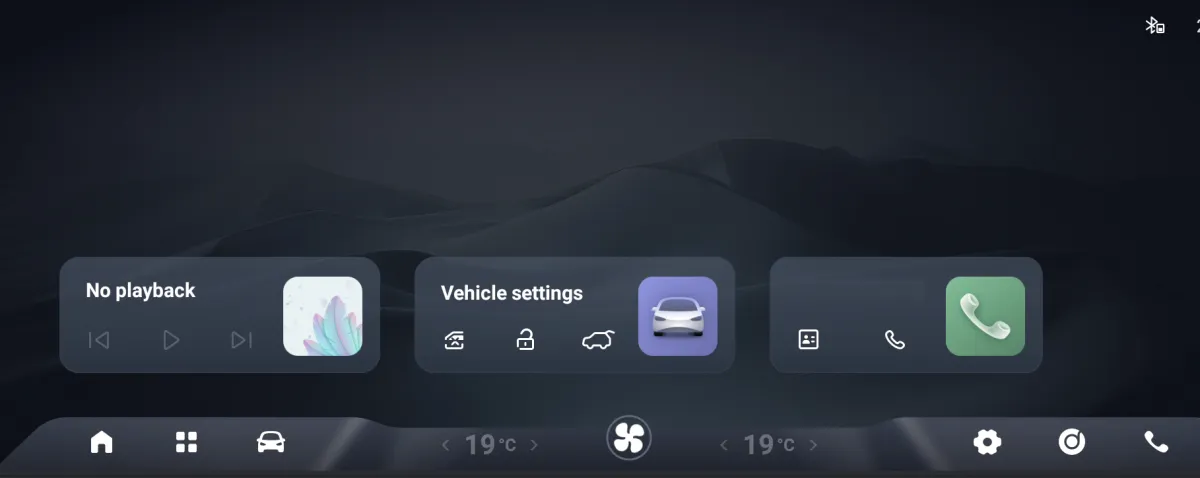
- Tap the settings gear on the right of the bottom bar.
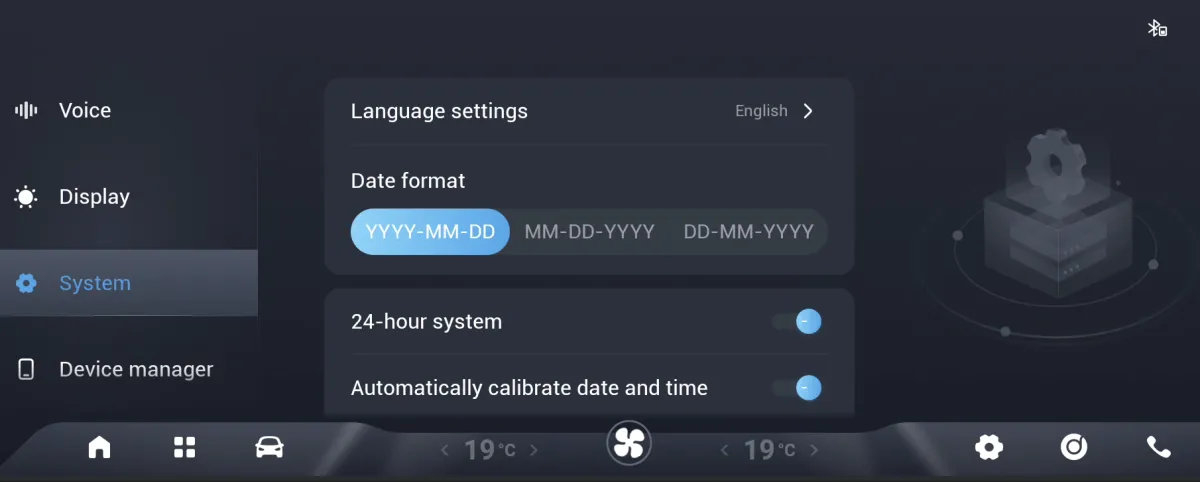
- Pick System on the left. Tap the small dot at the far right of the picture quickly and repeatedly (about 10 times). The hidden menu opens.
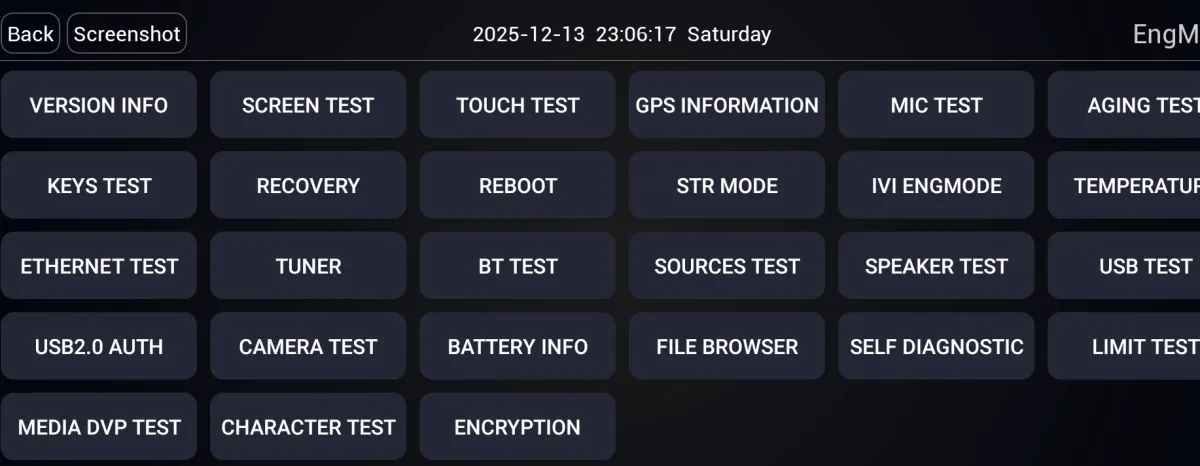
- In the hidden menu, tap VERSION INFO / 版本信息.
Write down the 15-digit number next to productID / 产品序列号. Don't mix up 0 (zero) and O (letter).
Tiggo 8 new generation (single landscape screen standing on top of the dashboard)
- On the car screen, tap Settings among the apps.
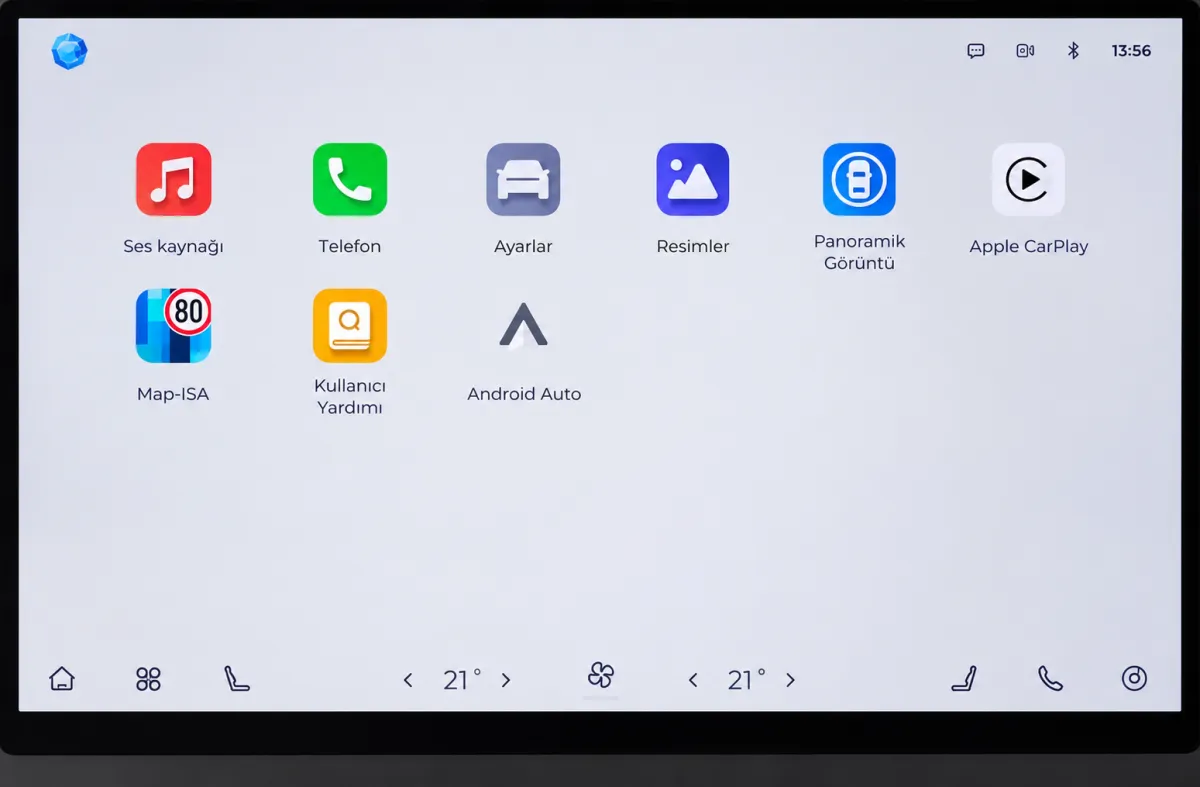
- Pick System on the left. Tap the About heading at the top right quickly and repeatedly. The hidden menu opens.
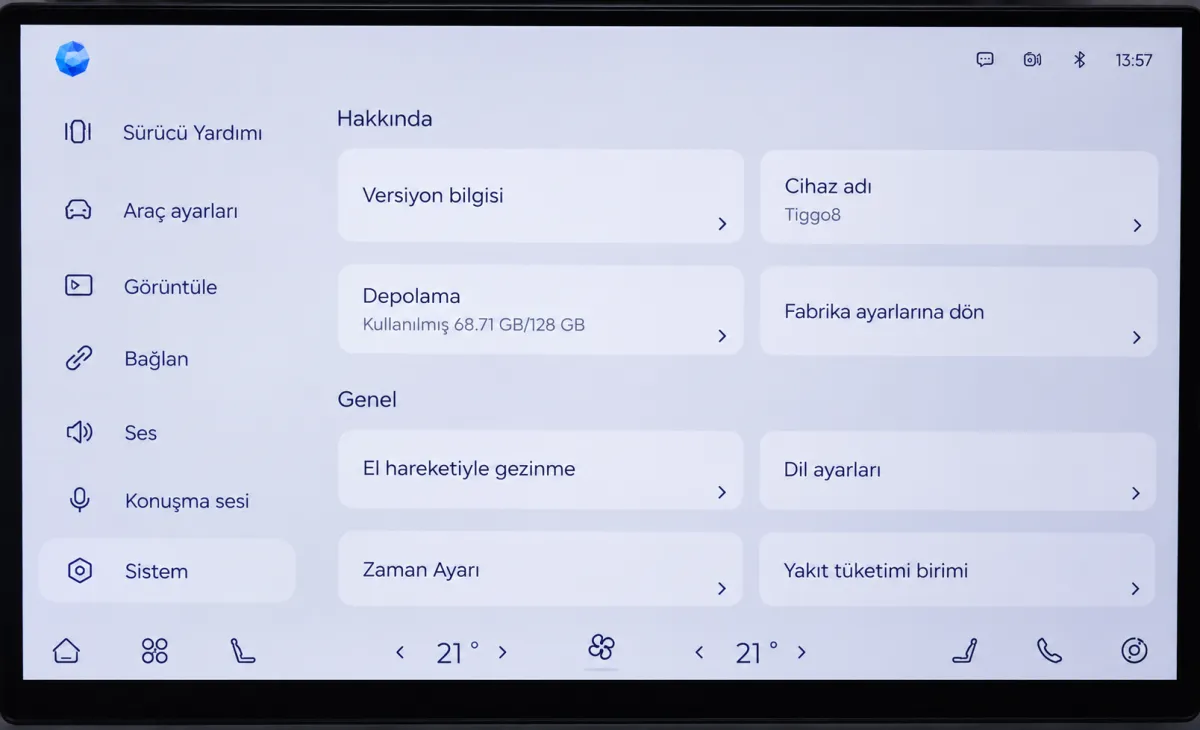
- In the hidden menu, tap VERSION INFO / 版本信息.
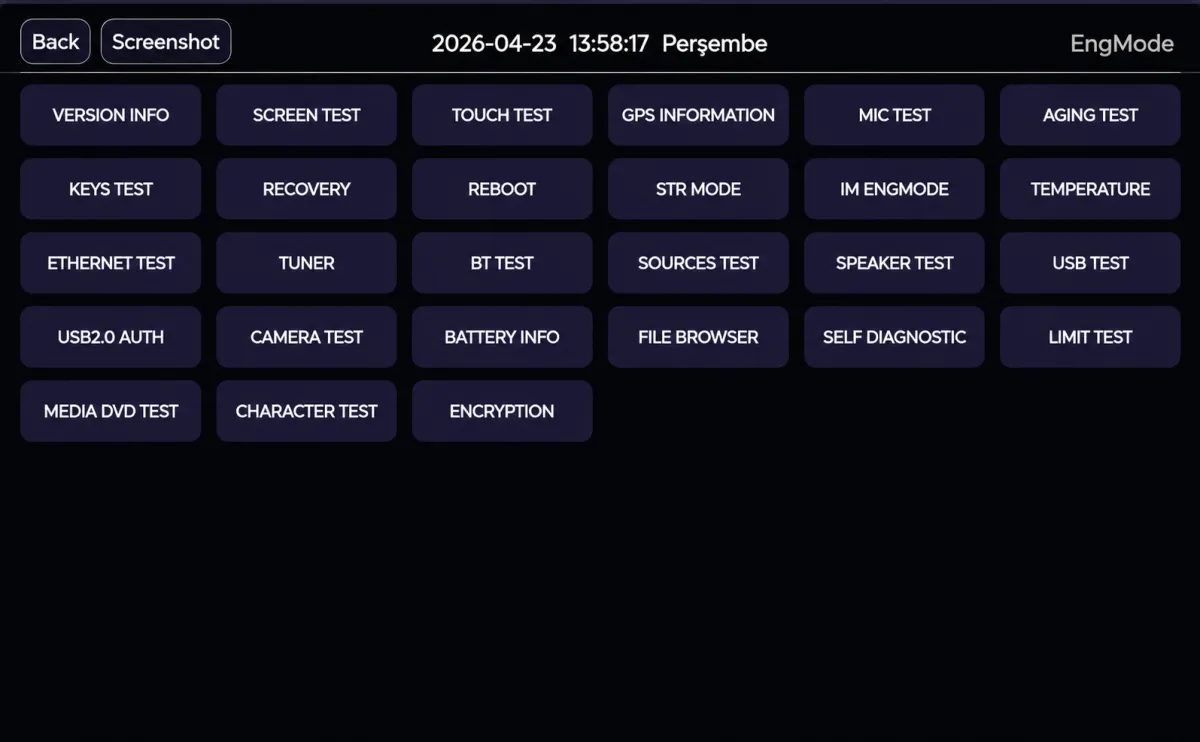
Write down the 15-digit number next to productID / 产品序列号. Don't mix up 0 (zero) and O (letter).
Jaecoo (large portrait screen in the middle)
- Open Settings on the car screen.
- Find the DMC software version row. Tap the label above it quickly and repeatedly. The hidden menu opens.
- In the hidden menu, tap VERSION INFO / 版本信息.
Write down the 15-digit number next to productID / 产品序列号. Don't mix up 0 (zero) and O (letter).
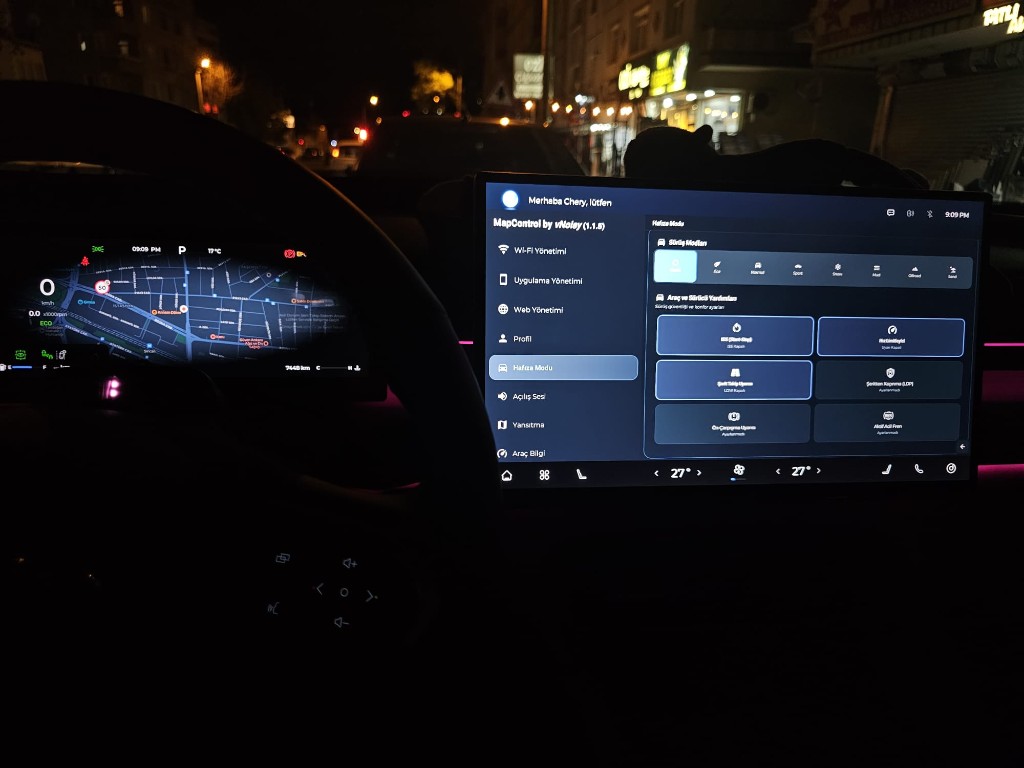
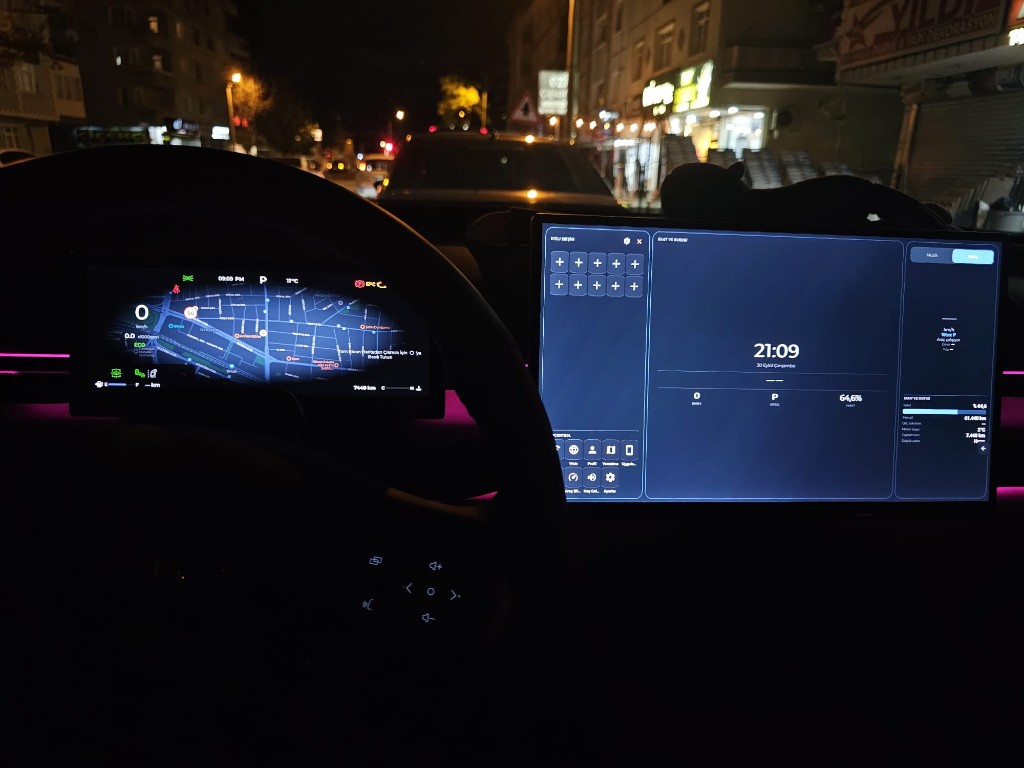
Part 2: Turn on ADB
What you need
- One USB stick.
- The file
svtasklist.flag. - The file
adbauth.key.
Procedure
- Format the USB stick as FAT32. Steps: Format the USB stick as FAT32.
- Copy
svtasklist.flagandadbauth.keyto the root folder of the USB stick. Do not put them in a subfolder. - Set the car date to the date of the key file. The dates must be the same. The format is yyyyMMdd. Example: if the key is
20260930, the car date is 30 September 2026. - Make sure that the multimedia screen is on.
- Put the USB stick in the USB port of the car.
- Wait for a Chinese message on the screen.
- If the message is
验证成功,打开adb!!!, ADB is on. Remove the USB stick. - If you see a different message, use the table below.
Messages on the screen
| Message | Meaning | Action |
|---|---|---|
验证成功,打开adb!!! | The key is correct. ADB is on. | Go to Part 3. |
鉴权失败,文件不存在,请检查 | The car cannot find adbauth.key. | Put the file in the root folder of the USB stick. Make sure that the name is adbauth.key. |
鉴权失败,文件无效 | The file is not valid or is empty. | Copy the file again. Or download the file from the site again. |
鉴权失败,数据异常 | The car cannot read its serial number. | Restart the car. Try again. |
鉴权失败,验证失败!!! | The key file does not match the car and the date. | Set the car date to the date of the key file (yyyyMMdd). Try again. |
Part 3: Connect the cable
Use a browser that supports WebUSB: Chrome, Edge, or Opera.
Android phone or tablet
You need two parts. One is a Type-C OTG adapter. The Type-C plug goes into the phone or the tablet. The other end is a USB socket. The second part is a cable with a USB plug on both ends.
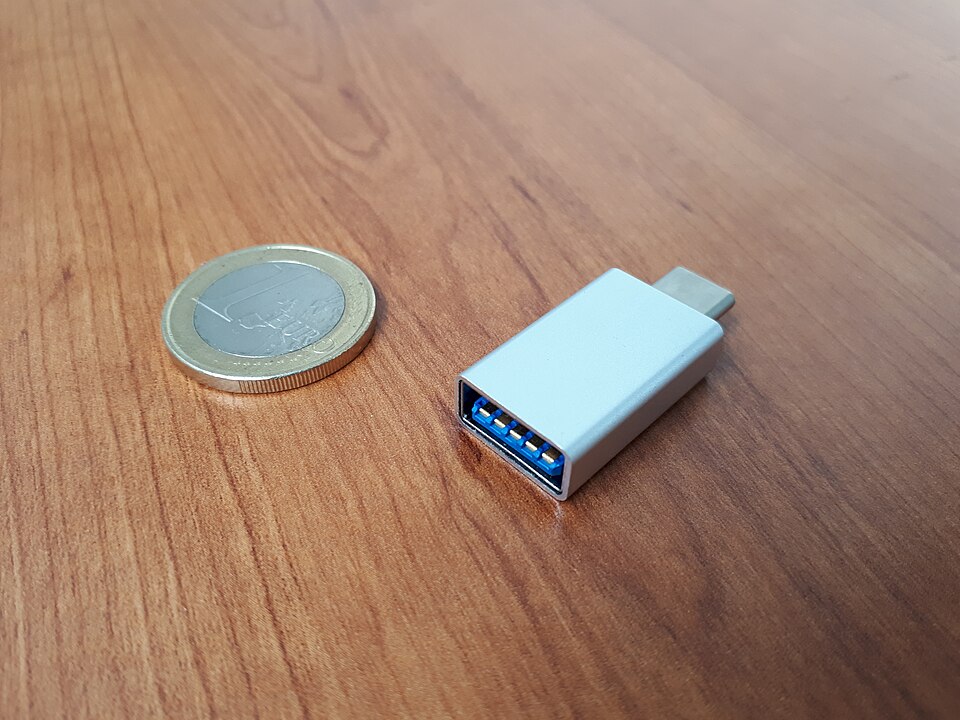
Photo: Fructibus, Wikimedia Commons, CC0.
- Put the Type-C plug into the Type-C port of the phone or the tablet.
- Put one USB plug of the cable into the socket of the adapter.
- Put the other USB plug of the cable into the USB port of the car.
Windows laptop
You do not need the OTG adapter. A cable with a USB plug on both ends is enough.
- Put one USB plug of the cable into a USB port of the computer.
- Put the other USB plug of the cable into the USB port of the car.
Part 4: Install the app
- Open /install in the browser.
- Select the install type "I have adbauth.key".
- Press "Connect". Select the car in the browser window.
- Press "Device Info". Make sure that the device information is visible.
- Press "Install". Wait until the install finishes.
- If you want a store app, press "Install market app". This step is separate from the FrostNav install.
What the installer does
- The browser does the ADB authentication.
- It writes two helper files to
/data/local/tmp/in the car:mapcontrol-silent-installer.dexandmc-run.sh. - It installs the APK file with
com.frostnav.adb.MapControlSilentInstaller. This program runs throughapp_process64. - It gives the permissions.
Permissions that the installer gives
The installer gives these permissions to com.frostnav. The source is MapControl/install.sh.
- Doze whitelist:
dumpsys deviceidle whitelist +com.frostnav - AppOps: SYSTEM_ALERT_WINDOW, GET_USAGE_STATS, REQUEST_INSTALL_PACKAGES, MANAGE_EXTERNAL_STORAGE, WRITE_SETTINGS
pm grant: READ_LOGS, QUERY_ALL_PACKAGES, PACKAGE_USAGE_STATS, location (fine, coarse, background), WRITE_SECURE_SETTINGS, RECORD_AUDIO, BLUETOOTH_CONNECT, CAMERA, and others- Accessibility service:
com.frostnav/com.frostnav.service.GlobalBackService - Notification listener:
com.frostnav/com.frostnav.media.LauncherMediaNotificationListener